Inside Git: How It Works and the Role of the .git Folder
Also onpreet-jain.hashnode.dev/inside-git-folderYou’ve memorized the commands. You know how to git add and git commit. But have you ever wondered what is actually happening when you press enter?
Most developers (including me) treat Git like a black box: commands go in, and version control comes out. But understanding the internal machinery changes everything. Instead of blindly typing commands, you start building a mental model of the system.
Let's pop the hood together and look at the engine.
Image inspired by cartoonstock.
Understanding the .git Folder
Go to the root of your project and enable "hidden items" (type ls -a in your terminal). You will see a folder named .git.
This folder isn't just a normal config file. This folder is your git repository.
When you delete your project files, you are just deleting the current files in your "working directory." But if you delete the .git folder? You delete the entire history of the project—every commit, every branch, every version. It all lives here.
This folder is essentially a local database where Git stores every snapshot of your project.
The Analysis of the .git Folder

Here is the "cheat sheet" for what the files and directories inside the .git folder actually do:
config: The settings file. This stores your user info, email, and the URL for your remote repository (GitHub).HEAD: The "You Are Here" marker. It points to the branch you are currently working on.hooks: A folder for scripts that run automatically (like checking for errors before you commit).refs: Short for "references." This is where Git stores pointers to your branches and tags.objects: The most important folder of all—this is the local database where all your files and history are actually stored.
Getting to know the Git Objects: Blob, Tree, Commit
Inside that .git folder, Git doesn't store files the way your computer does. It breaks everything down into three main types of "objects."
Think of it like a file system within a file system.
The Blob (Binary Large Object)
When you create a file like index.html and stage it, Git reads the content of the file and compresses it. It creates a "Blob."
What it stores: Just the content of the file.
What it ignores: The filename.
Analogy: Think of a printed photograph of you, Hitesh and Piyush sir lying on a table with nothing written on the back. You can clearly see the image (the content), but you don't know what the file is called or which folder it belongs to. It is just raw data without a label.
The Tree
If Blobs are files, Trees are folders. A "Tree" object maps filenames to Blobs. It tells Git, "The file named index.html corresponds to this specific Blob."
What it stores: Directory structure and filenames.
Analogy: Think of the Photo Album page that holds the photos. The page has a specific slot labeled "WebDev Cohort 26" (the filename). The Tree's job is to take that nameless photo (the Blob) and place it into the slot labeled "WebDev Cohort 26"
The Commit
This is the object you interact with the most. A Commit is a wrapper around a Tree.
What it stores: Who made the change (author), when it happened (timestamp), why it happened (message), and a pointer to the main Tree object.
Crucially: It also stores a pointer to the previous commit (the parent). This linking is what creates the "history" chain, using which a commit can access its previous commit and so on.
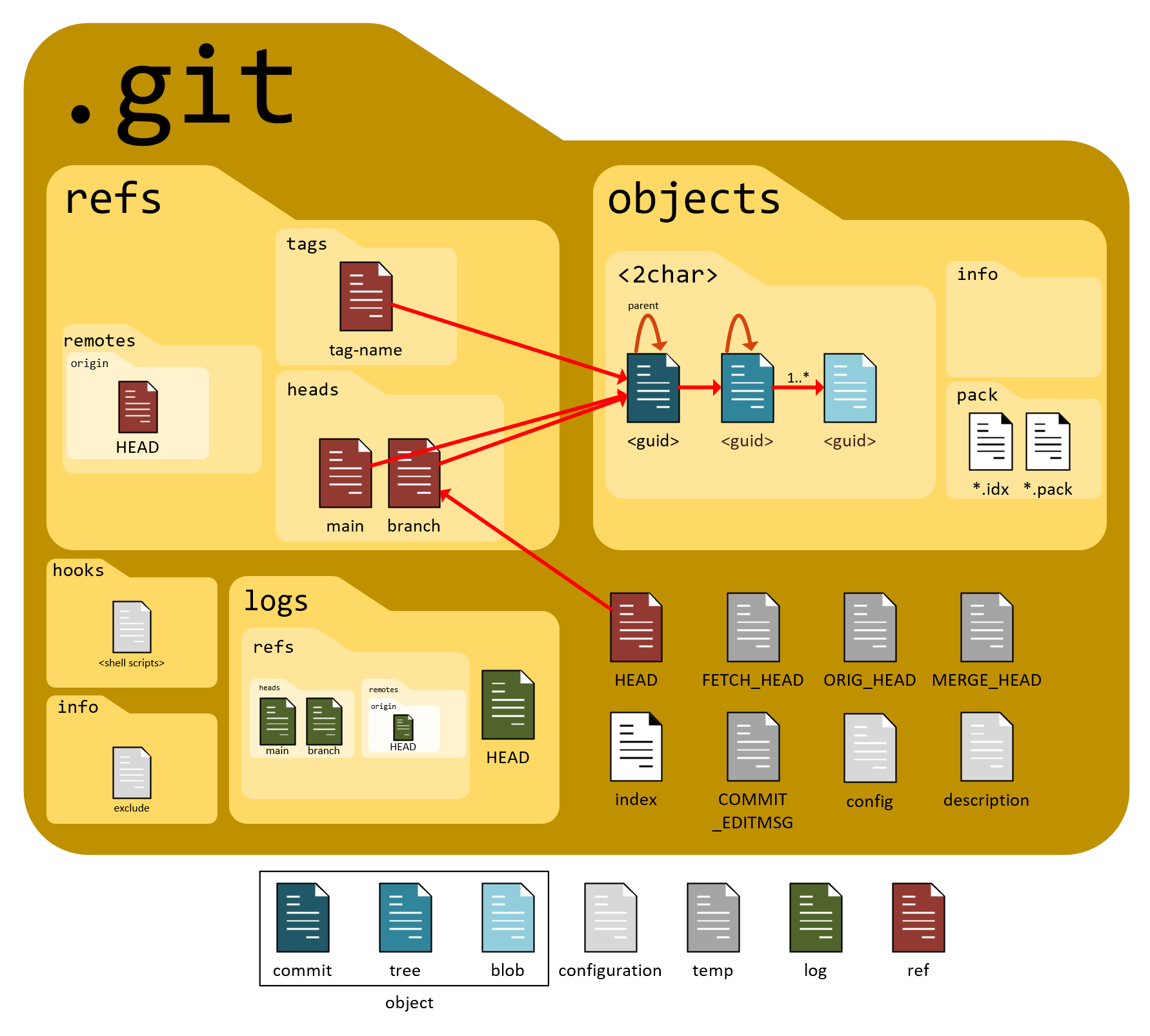
Image credits: This article from humbletoolsmith
How Git Tracks Changes
Here is the secret: Git is not storing differences; it is storing snapshots.
Many people(again, including me ) used to think Git only saves the lines of code you changed. In reality, every time you commit, Git takes a picture of how the entire file looks at that moment.
The Magic of the Hash
Git uses something called a SHA-1 Hash, that long string of random characters you see in the logs (e.g., a1b2c3d...).
When you run git add file_name , Git takes the content of your file and runs it through a mathematical formula to generate this unique ID.
If you change even a single comma in the file, the Hash changes completely.
This is why Git is so secure. You cannot alter the history without changing the ID.
The Workflow Internally
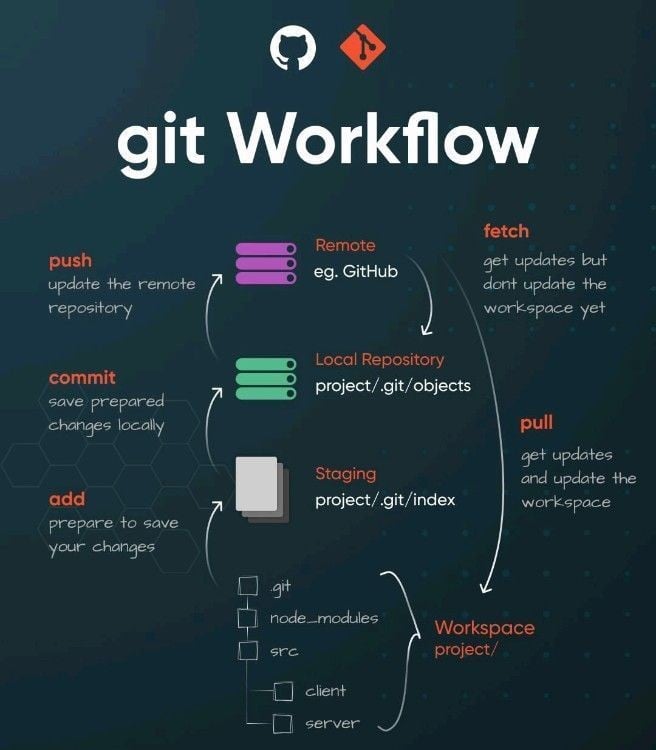
You edit a file: It sits in your working directory.
git add: Git compresses the file content into a Blob and stores it in the.gitfolder. It calculates the Hash.git commit: Git creates a Tree to map the filenames to those Blobs, and then creates a Commit object to permanently save that snapshot with your signature.
By understanding this flow, "merge conflicts" and "detached heads" stop being scary errors and start simply being logic puzzles you can solve!