When you type google.com and hit enter, your browser gets the IP address in milliseconds. It feels like magic, but it’s actually a highly organized relay race.
We’ve already established that DNS is the phonebook of the internet. But how does your computer actually find the right page in that phonebook? It doesn't just download a massive list of every website in existence on the internet. Instead, it asks a series of very specific questions to a hierarchy of servers.
To understand this, we are going to use a tool called dig (Domain Information Groper). If you’re on Mac or Linux, you can use this directly in your terminal. If you’re on Windows, see this guide.
Haha just kidding. For windows, you should download and use WSL2.
Now, Let’s trace the journey of a DNS request, layer by layer.
The Tool: What is dig?
dig is the stethoscope for DNS. It allows you to query DNS servers directly and see exactly what they are telling your computer. It’s the primary tool us developers should use to debug why a website isn't loading.
Step 1: The Root of All Internet (.)
Every DNS search starts at the top. In the DNS hierarchy, the top isn't Google or Amazon—it is the Root Zone.
In your terminal, if you type:
dig . NSYou are asking: "Who is in charge of the entire internet root?"
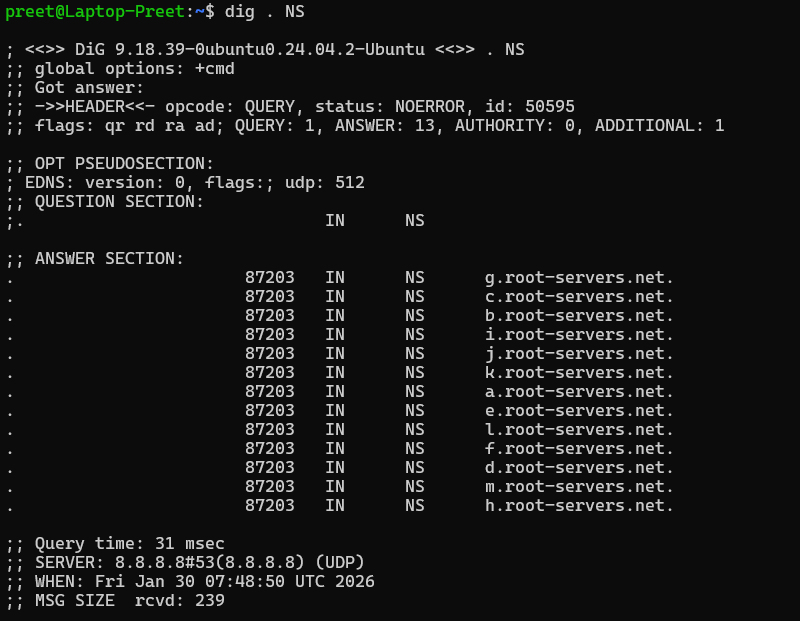
What happens: You will see a list of servers named a.root-servers.net, b.root-servers.net, all the way to m.root-servers.net, like shown in the above image.
These 13 sets of servers (scattered physically across hundreds of locations) are the gatekeepers. They don't know the IP address of google.com. In fact, they don't know much at all. But they know who manages .com.
Step 2: The TLD (Top-Level Domain)
The Root Server looks at your request for google.com and says: "I don't know that specific site, but I see it ends in .com. Go talk to the .com managers."
So, let's ask them.
dig com NSWhat happens: The output shows servers managed by Verisign (the registry for .com).
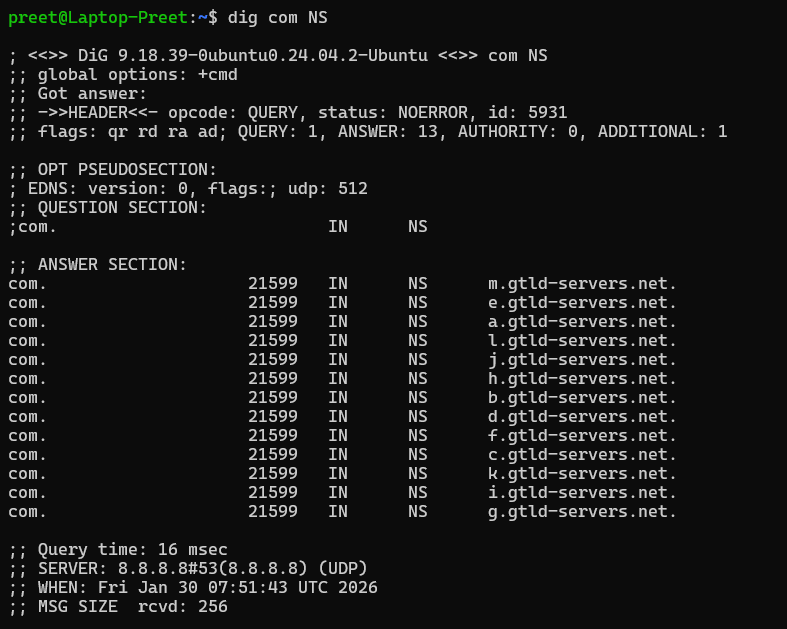
These represent the TLD (Top-Level Domain) Servers. They are specific to the extension (.com, .org, .io). The TLD server still doesn't know the IP address of Google. But it knows exactly which specific company has purchased the rights to google.com.
Step 3: The Authoritative Name Server
The TLD server tells your computer: "I don't have the IP, but I know that google.com is managed by Google's own name servers. Go ask them."
This leads us to the Authoritative Name Server. This is the final stop. This server belongs to the organization that owns the domain. It is the only server that holds the actual "phone number" (IP address).
Let's check who manages Google:
dig google.com NS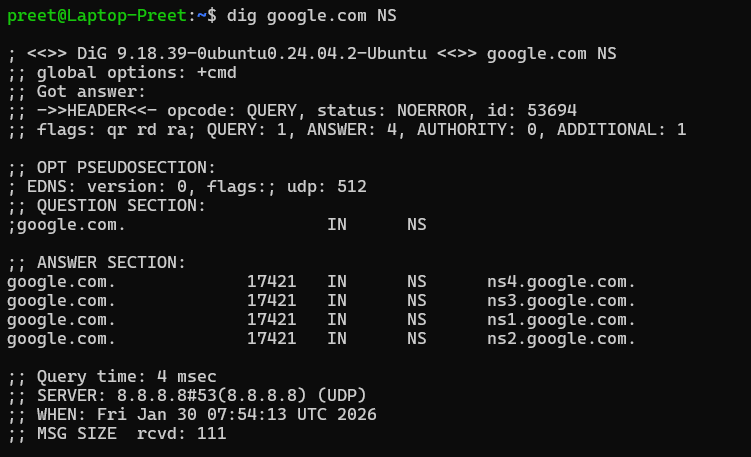
What happens: You will see servers like ns1.google.com. These are the servers that have the final answer.
Step 4: The Full Resolution
In the real world, your browser does this entire process automatically. It talks to the Root, then the TLD, then the Authoritative server.
When you run the standard command:
dig google.comYou are seeing the result of that entire relay race.
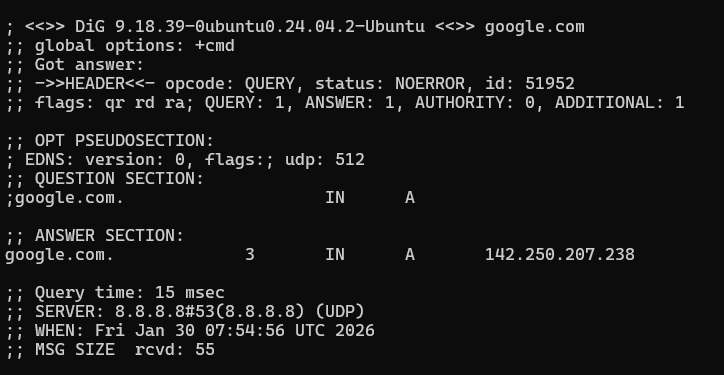
Question Section: You asked for
google.com(A Record).Answer Section: The Authoritative Server (which we found in Step 3) finally responds: "Yes, I am
google.com, and my address is142.250.190.46."
Summary: The DNS Hierarchy
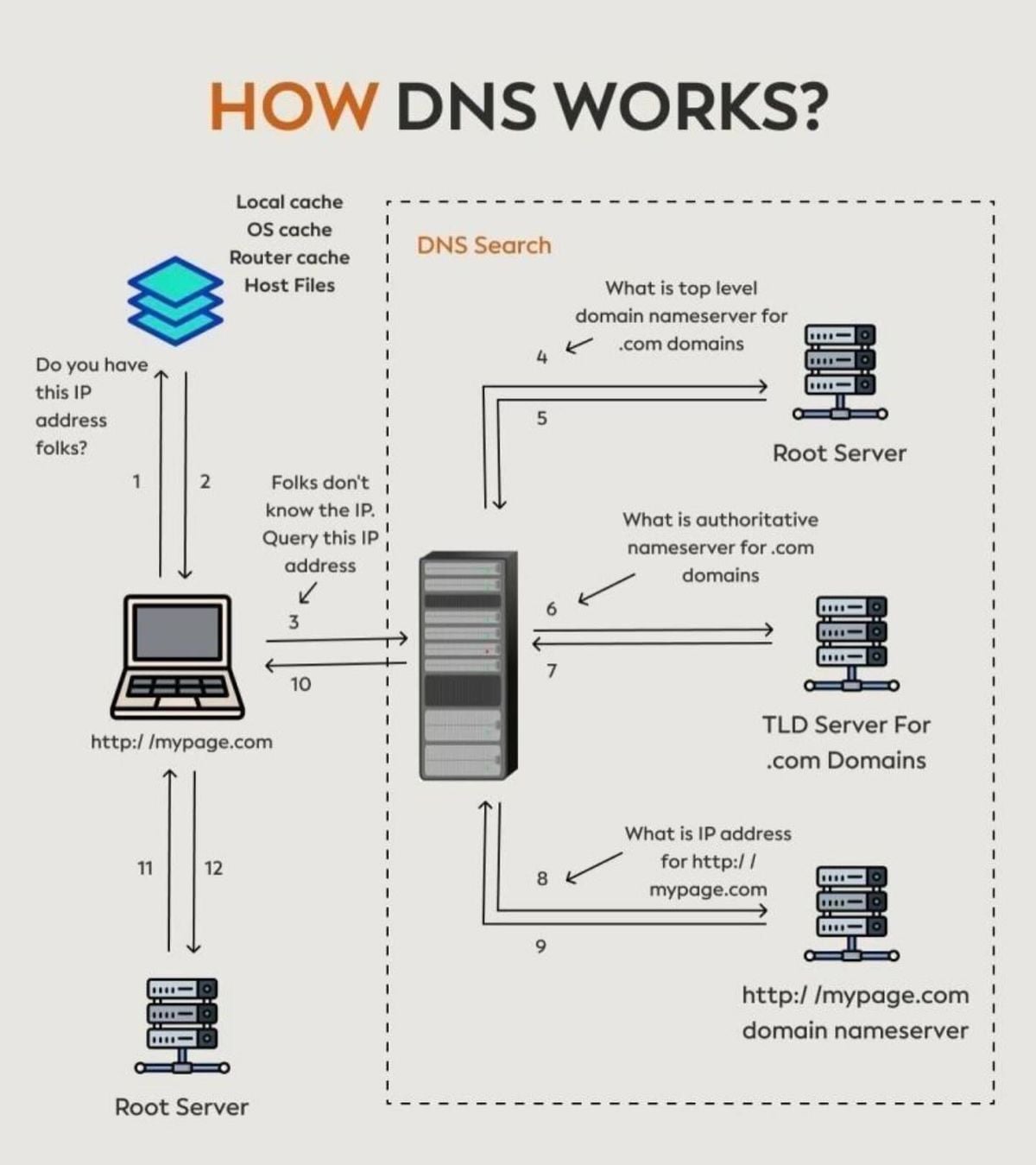
To recap, if you were looking for google.com manually, the conversation would go like this:
You: "Hey Root Server (
.), where isgoogle.com?"- Root: "I don't know. But
.comis managed by Verisign. Go ask them."
- Root: "I don't know. But
You: "Hey TLD Server (
.com), where isgoogle.com?"- TLD: "I don't know the IP. But
google.comis managed byns1.google.com. Go ask them."
- TLD: "I don't know the IP. But
You: "Hey Authoritative Server (
ns1.google.com), where isgoogle.com?"- Authoritative: "I know that one! The IP is
142.250.190.46."
- Authoritative: "I know that one! The IP is
And the most amazing part? This entire conversation happens in less time than it took you to blink.